The Webflow CMS stores content that appears on your website again and again in the same format. You maintain it once in one place, and Webflow displays it everywhere in the right design. On B2B SaaS websites, that's typically blog posts and customer testimonials, often use cases or job listings too.
We explain the principle here as simply as possible, starting with an example; the technical terms come afterwards. Then we show which content is worth turning into a collection and where the limits are. Our view comes from more than 50 Webflow projects over six years.
The Webflow CMS in five terms
In the Webflow CMS, you create a collection with fields and fill it with items. These items then appear on detail pages or in lists. An example makes this easiest. Take the customer testimonials on your website: each testimonial has a customer name, a logo, a quote and an industry.
Webflow translates exactly this example into five terms:
Collection: the content type, here "Customer testimonials".
Fields: the information each testimonial needs, i.e. name, logo, quote and industry.
Item: a single testimonial, i.e. the one from a specific customer.
Collection page: the template for the detail page. Webflow generates a separate subpage from it for every item.
Collection list: a list or grid you can place on any page, such as the latest testimonials on the homepage.
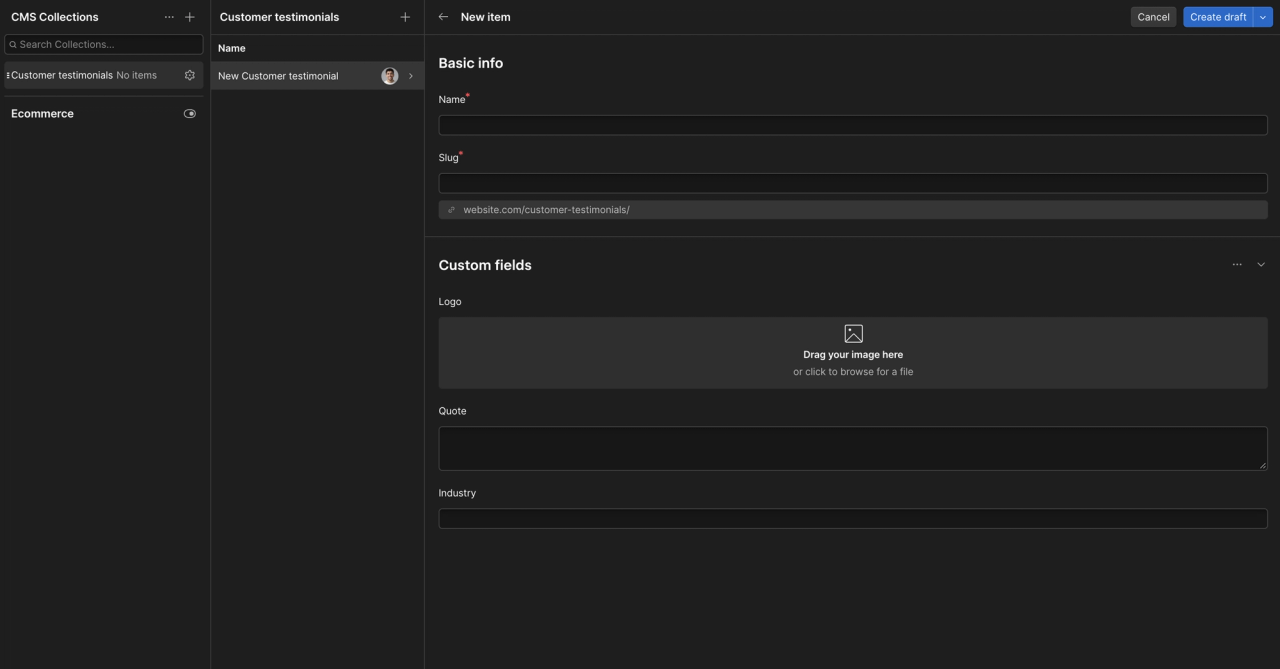
Here's the same example in the Webflow interface. The collection is called Customer testimonials, the fields Logo, Quote and Industry:
Webflow CMS: the Customer testimonials collection with the fields Name, Logo, Quote and Industry
The difference from a regular page lies in maintenance. You change static text individually in every place it appears. Dynamic content, by contrast, comes from one source: if you change the quote in the CMS, Webflow updates it everywhere the testimonial is used. With reference fields you can also link collections, for example a customer testimonial with the matching use case.
If you're completely new to Webflow, you'll find the basics in the article What is Webflow? How the CMS differs from WordPress in daily work is covered in the comparison Webflow vs. WordPress.
Marketing use cases for SaaS websites
Anything that's added regularly and always has the same structure is worth a collection. For a single page like the legal notice, you don't need a CMS. The table shows the collections that appear most often on B2B SaaS websites.
Collection
Typical fields
Who maintains it
Blog
Title, teaser, author, category, body, cover image, SEO title, meta description
Content team or marketing
Customer testimonials
Customer, logo, industry, quote, link to the case study
Title, team, location, description, application link
HR or people team
Blog and resources
The blog is almost always the first collection. Every post uses the same template, and the overview page fills itself via a collection list. A typical mistake: whitepapers and webinars end up in the same collection as blog posts, even though they need different fields. Better to create a separate collection for resources.
Customer testimonials and case studies
Testimonials appear on many pages, on the homepage as well as on product and use case pages. As a collection, you maintain each testimonial once and show it via reference fields wherever it fits.
Short quotes and detailed case studies don't automatically have to live in separate collections. If the same fields are enough, you can keep both in one collection and use conditional visibility to control which sections appear. A long case text or a download, for example, only shows up if the field is filled. Separate collections are worth it when the fields differ significantly.
Webflow generally creates collection pages for CMS items. If short testimonials don't need their own detail page, you should prevent lots of thin URLs from being indexed. In the item details you can turn off sitemap indexing per item on paid site plans. The item then gets a noindex tag and drops out of the sitemap.
Use cases
Use cases describe how a specific audience uses your product. As a collection, all use case pages get the same structure, and your team adds new use cases without a new layout. A typical mistake: setting up fields so sparsely that in the end the pages differ only in their title.
Features and integrations
Integration pages are tempting because one template quickly produces 50 pages. They're only worthwhile if every page has its own content, such as what the integration actually does and how setup works. Google's spam policies classify mass-produced pages without added value as scaled content abuse. Ten well-maintained integration pages will therefore bring you more than 80 thin ones.
More collections for team and product
Team pages and job listings also work well as collections. A changelog is worth it as soon as your product ships updates regularly. A few fields are enough here, and maintenance can sit with HR or the product team.
Scaling and limits
The Webflow CMS grows with you within your site plan's limits. For most marketing websites, these limits are more than enough. Things get tight more often when collections grow without a plan and nobody remembers what each field is for.
The most important limits according to the Webflow pricing page and the Webflow Help Center (as of 9 Nov 2026):
Limit
Value
What it means for you
CMS items on the Premium plan
20,000
Enough for the usual marketing collections, even after years
Collections on the Premium plan
40
Enough, as long as you create content types deliberately
CMS on the Starter plan (free)
50 items, 20 collections
For testing only; the website runs on a webflow.io address
CMS on the Basic plan
not included
Basic is meant for websites without a CMS
Items per collection list
100
For longer overviews, you can paginate or combine several collection lists using the skip function
Collection lists per page
40, of which up to 10 nested
Complex pages remain possible, but nested lists cost load time
The list limits only apply to what's displayed on a page. How many items your CMS can store is set by the site plan. By default, a collection list shows up to 100 items. You get more items on the same page via pagination, or by duplicating the list and setting a skip value under Limit items on the copy, for example 100. The first list then shows items 1 to 100, the second items 101 to 200. Plan several clear collections rather than one with a huge number of fields, and maintenance stays manageable even at 500 items. We compare what the plans cost in the article Webflow pricing.
What marketing maintains on its own
With prepared fields and the right permissions, your marketing team creates and publishes items on its own. New collections and changes to templates, on the other hand, remain tasks for design or development. How well this works day to day depends on how roles are assigned and on a few details in the setup.
Webflow distinguishes two roles for this. A Content Editor edits content and CMS items; a Marketer can also build new pages from existing components. From the Growth workspace plan upward, you can turn the right to publish the entire website on or off for roles such as Designer, Marketer or Content Editor. That doesn't replace a binding approval process: even without this right, these people can publish individual CMS items. Deriving a fixed approval workflow from the Growth workspace alone would therefore be wrong.
On the Premium plan, you can publish individual items without republishing the whole website, and schedule items to go live. Required fields prevent items without an image or meta description. Short help texts on the fields explain to your team what belongs in which field.
In our projects, we plan components and CMS fields around the tasks your team handles after launch. During handover, your team practices exactly these tasks, such as adding a new testimonial or publishing a blog post. We describe how we approach this on our Webflow agency page.
When the Webflow CMS isn't the best choice
The Webflow CMS fits as long as your content mainly lives on the website and marketing maintains it. Via the CMS API, you can create, update and publish items. The Content Delivery API also delivers published content to other channels, such as apps or email sequences, serving it from a cache.
Still, Webflow remains a website-bound CMS. The data model follows collections and fields you built for pages. The content lives in Webflow, and a later system switch means migrating it. Sanity, as a headless CMS, is independent of the front end: you model content once as a data source for the website, product app and help center, and you keep it when the website system changes. Webflow is enough if the website is the main channel and other systems occasionally read along. A separate headless CMS is worth it when many systems need the same source, the data model grows more complex or you want to decouple content from the website stack.
These cases also point to an alternative:
Many channels should use the same content as a central source, or the data model becomes too complex for that.
Your team works with Git and code review and wants to roll out changes via deployments.
The data model exceeds the plan limits, such as a catalog with tens of thousands of items.
Every change should live in the complete source code of your own repository, not just in the Webflow interface.
AI agents can also work in Webflow. The Webflow MCP server gives them access to CMS content, pages, components, styles and other site data, within existing permissions. You don't need your own Git repository for this. Converia often fills its Webflow CMS exactly this way with AI support.
A code-based setup with Astro has different strengths. Changes live in your own repository, with version history and review before anything goes live. Agents work directly with the complete source code there. Webflow MCP is a good fit if your team wants to stay in the platform and prepare content or components with AI. Astro is worth it if you want to own the code and have every change go through Git.
In these cases, we evaluate a setup with Astro and Sanity with you. Content lives there as structured data in Sanity, and the website's code belongs to your team. When the switch is worth it and how it works is covered on our page about migrating from Webflow to Astro.
Frequently asked questions about the Webflow CMS
Do I need the Premium plan for the Webflow CMS?
For a website with a custom domain, yes, because the Basic site plan doesn't include a CMS. According to the Webflow pricing page, Premium costs USD 25 per month billed annually, or USD 39 billed monthly (as of 9 Nov 2026). The free Starter plan allows up to 50 CMS items, but the website then only runs on a webflow.io address; more plan details are in the article Webflow pricing.
Can I import existing content via CSV?
Yes, Webflow can import collection items from a CSV file. Beforehand, you define which column maps to which field, otherwise content ends up in the wrong field. After the import, check a few items in preview, especially rich text and images.
What's the difference between a collection list and a collection page?
A collection page is the template for an item's detail page; Webflow generates a separate subpage from it for every item. A collection list shows several items on any page, such as the latest articles on the homepage. You usually need both: the list as an entry point and the collection page for the details.
Is the Webflow CMS good for SEO?
Yes, the Webflow CMS comes with the most important SEO settings. Title and meta description on collection pages can be filled from fields such as the article title, and on the Premium plan you control indexing for individual items. Whether an item ranks, though, is ultimately decided by the page's content and structure.
Does path digital help plan the CMS structure?
Yes, we plan the CMS structure with you before the design is set. The basis is the tasks your marketing team handles regularly after launch, such as adding testimonials or publishing use cases. From that, we derive which collections and fields you really need.
Can we publish items ourselves after launch?
Yes, with the right roles your team publishes new items on its own, and that's exactly what we practice during handover. If you'd like further support after a relaunch with us, you can agree on a Growth Partnership with path digital. We then plan larger changes to collections or templates together.
About the author
Tarik Yayla
Founder @ path digital
Tarik founded path digital with a clear conviction: a good B2B SaaS website starts with strategic positioning. Together with his team, he combines clear messaging, design and Webflow to help companies develop their websites with purpose. Away from website relaunches, he trains for marathons and explores how AI is changing agency work.
In a free 30-minute strategy call, we look at your content types and your marketing team's tasks. Afterwards, it's clear whether the Webflow CMS fits and what your first collections should look like.
We use cookies and similar technologies to understand how our website is used and improve our website and advertising. You choose which optional cookies to allow. Read our privacy policy
Cookie & storage details
Provider of this website: path digital. No analytics storage is created by scrolling or opening these details. Optional analytics can be declined without restricting the website.
Necessary: your choice
Name / technology
pd_consent_v2 · Local Storage
Provider / purpose
path digital: remembers your consent or rejection after you make a choice.
Duration
Valid for 180 days. We ask again after expiry. Browser storage remains until replaced or deleted.
Necessary: selected language
Name / technology
pd_language · Cookie
Provider / purpose
path digital: remembers German or English only when you explicitly use the language selector. Overrides browser preference on a later direct homepage visit.
Duration
180 days; replaced when you select another language.
Reach measurement without storage: PostHog
Provider: PostHog Inc., USA; EU hosting. Without statistics consent, we count page views, CTA clicks and booking steps and measure load times (Core Web Vitals) cookieless: nothing is stored on your device, and PostHog derives a daily changing, non-reversible identifier on its servers from IP address and browser data. No session recordings or form contents.
Optional: PostHog statistics
With statistics consent, PostHog also uses random visitor and session identifiers in your browser so that visits across several pages and days can be understood together.
Name / technology
ph_phc_u1gZuicUCym1nXYZNBjF0d7KMZm2LnAiHKU30HoiYVk_posthog · Local Storage / Session Storage
Duration
Local Storage has no automatic browser expiry; removed on withdrawal or when expired consent is detected on a visit. Session Storage lasts for the tab session.
Tab identifier
ph_phc_u1gZuicUCym1nXYZNBjF0d7KMZm2LnAiHKU30HoiYVk_window_id · Session Storage · Distinguishes tabs during a session; removed on withdrawal.
Consent marker
__ph_opt_in_out_phc_u1gZuicUCym1nXYZNBjF0d7KMZm2LnAiHKU30HoiYVk · Local Storage
Purpose / duration
Records the SDK opt-in after statistics consent, without a visitor identifier. Removed on withdrawal.
Marketing: Google Ads
Google Ireland Limited, Ireland; processing may also take place in the USA. Measures advertising performance and confirmed bookings and supports advertising attribution. Requires marketing consent. Google Analytics is not used.
_gcl_au, _gcl_aw
Advertising and click attribution · cookies · up to 90 days. The conversion linker requires marketing consent.
Meta Platforms Ireland Limited, Ireland; processing may also take place in the USA. Measures advertising performance and confirmed bookings, and supports remarketing. Requires marketing consent.
_fbp
Browser identifier · cookie · up to 90 days.
_fbc
Associates an ad click with later actions · cookie · up to 90 days; only when an ad click identifier is available.
LinkedIn Ireland Unlimited Company, Ireland; processing may also take place in the USA. Advertising attribution, audience analysis and remarketing. Requires marketing consent.
li_gc
Stores LinkedIn consent · cookie · 6 months.
bcookie
Browser identifier · cookie · 1 year.
lidc
Routes LinkedIn requests · cookie · 1 day.
UserMatchHistory, AnalyticsSyncHistory
Advertising attribution and identifier synchronization · cookies · 30 days.
Snitcher B.V., Netherlands. Identifies companies visiting this website based on the IP address and evaluates their visits. If you enter your email address in one of our forms (booking, download, website audit), Snitcher links it to your visits on this website, including earlier ones, so we can see which pages you viewed. Without marketing consent Snitcher only records the current visit, with no lasting identifier; recognising returning visits and linking your email address require marketing consent.
snitcher_device_id / radar_device_id
Recognizes returning visitors · cookie and Local Storage · 1 year.
snitcher_session / radar_session
Associates page views with a visit · Local Storage · current visit.
snitcher_sn_* / radar_sn_*, spotter_data
Technical visit data for company identification · Session Storage · tab session.
Local Storage and Session Storage. Stores booking ids that already sent a conversion, so a reload does not count the same call again. No name or email. Written only with marketing consent and kept after withdrawal so a later reload stays deduplicated. Removed when you delete this site’s data.
Google Tag Manager loads these services only after the corresponding choice. Scrolling does not count as consent. Cookie lifetimes may be shortened by browser settings. Depending on sign-in state and browser restrictions, providers may also use their own domain cookies; their tables above list the details. Withdrawal stops future loading and removes accessible tracking storage on our domain. Cookies on other domains can be deleted in your browser settings.
To withdraw, open “Privacy settings” in the footer and choose “Necessary only”. Further information on processing and your rights: Privacy policy · PostHog Privacy